
This guide explains how to customize the Tilanium Framer template using its existing components and CMS collections. Follow each short instruction and use the screenshot directly below it to find the correct component or setting.
View the Tilanium industrial Framer template
Before you start
Duplicate the project before making major structural changes. Replace content on the desktop breakpoint first, then review tablet and phone layouts after your copy, images, and CMS content are in place.
Update the navigation
Open the Assets panel and locate the Navigation component used by the page template.
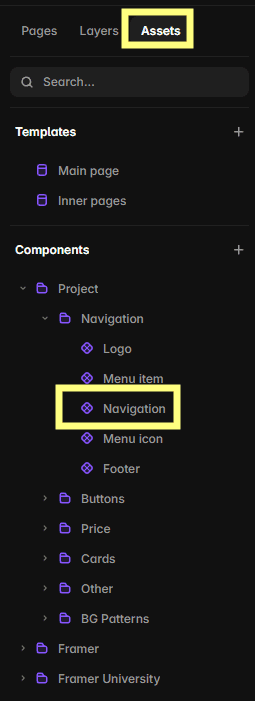
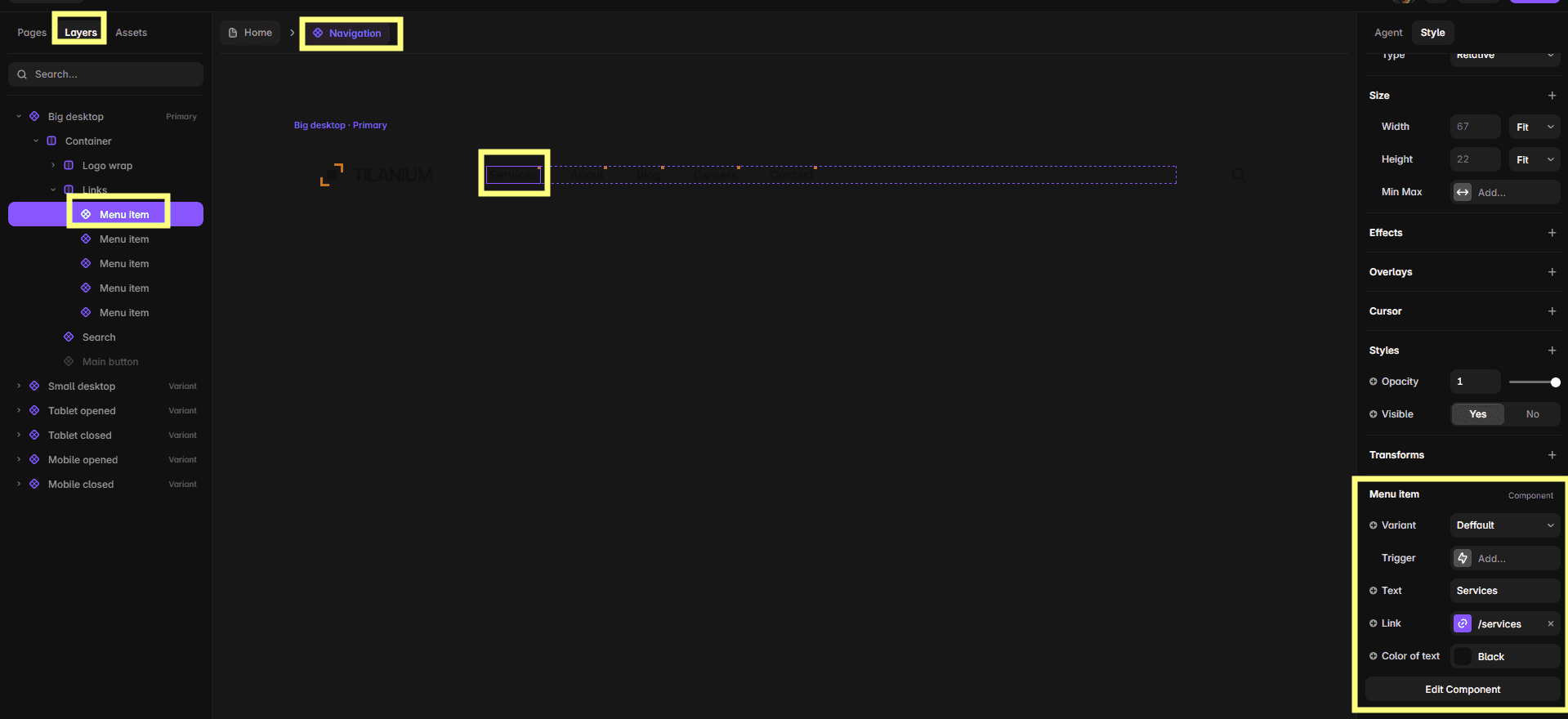
Open the component to edit menu labels and destinations. Add or remove menu items only when the corresponding page or section exists.
Replace the hero video
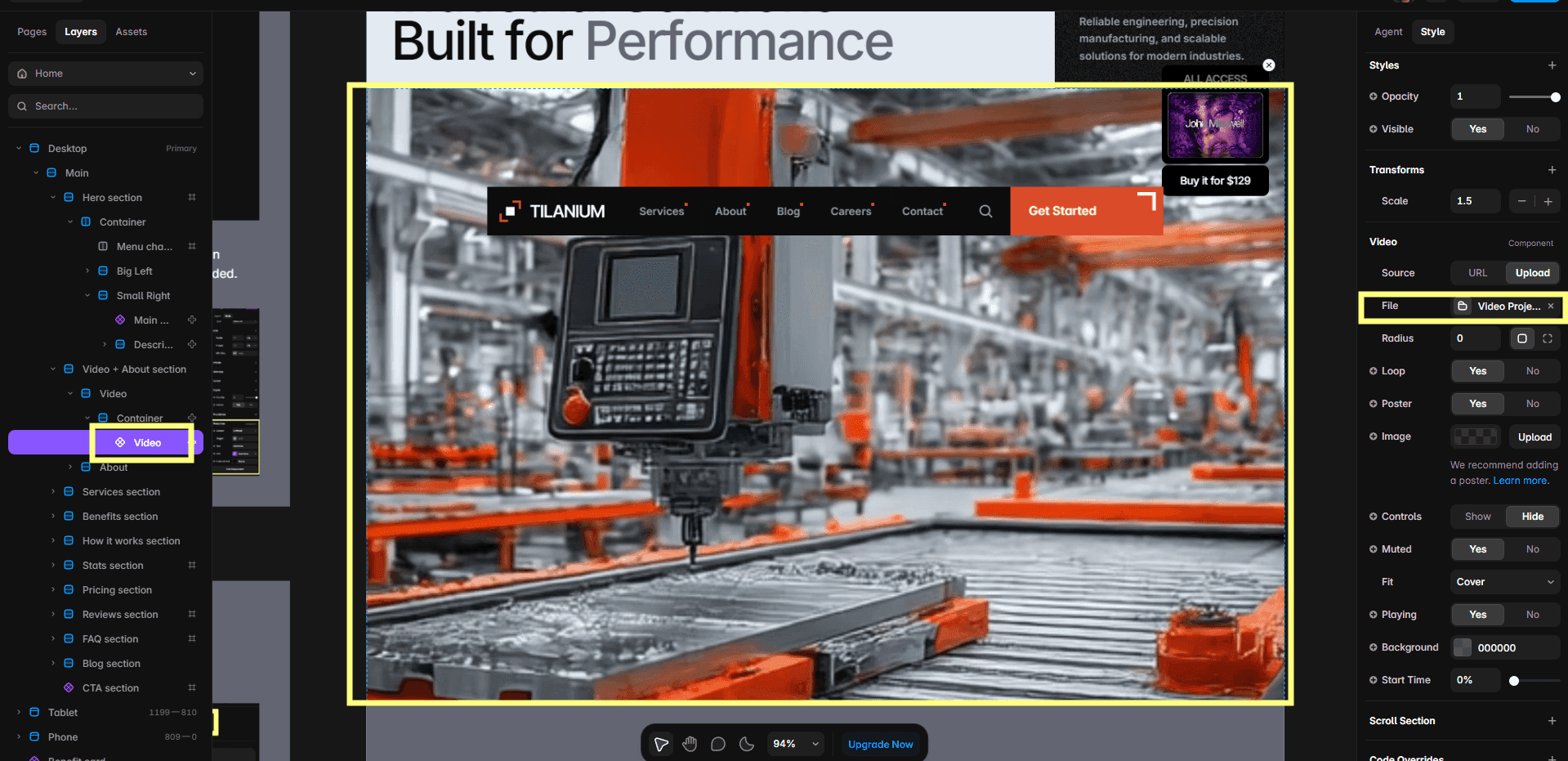
Select the hero video and choose the replacement video source in the right-side properties panel. Check the crop, playback settings, and loading behavior after replacing it.
Change button text and links
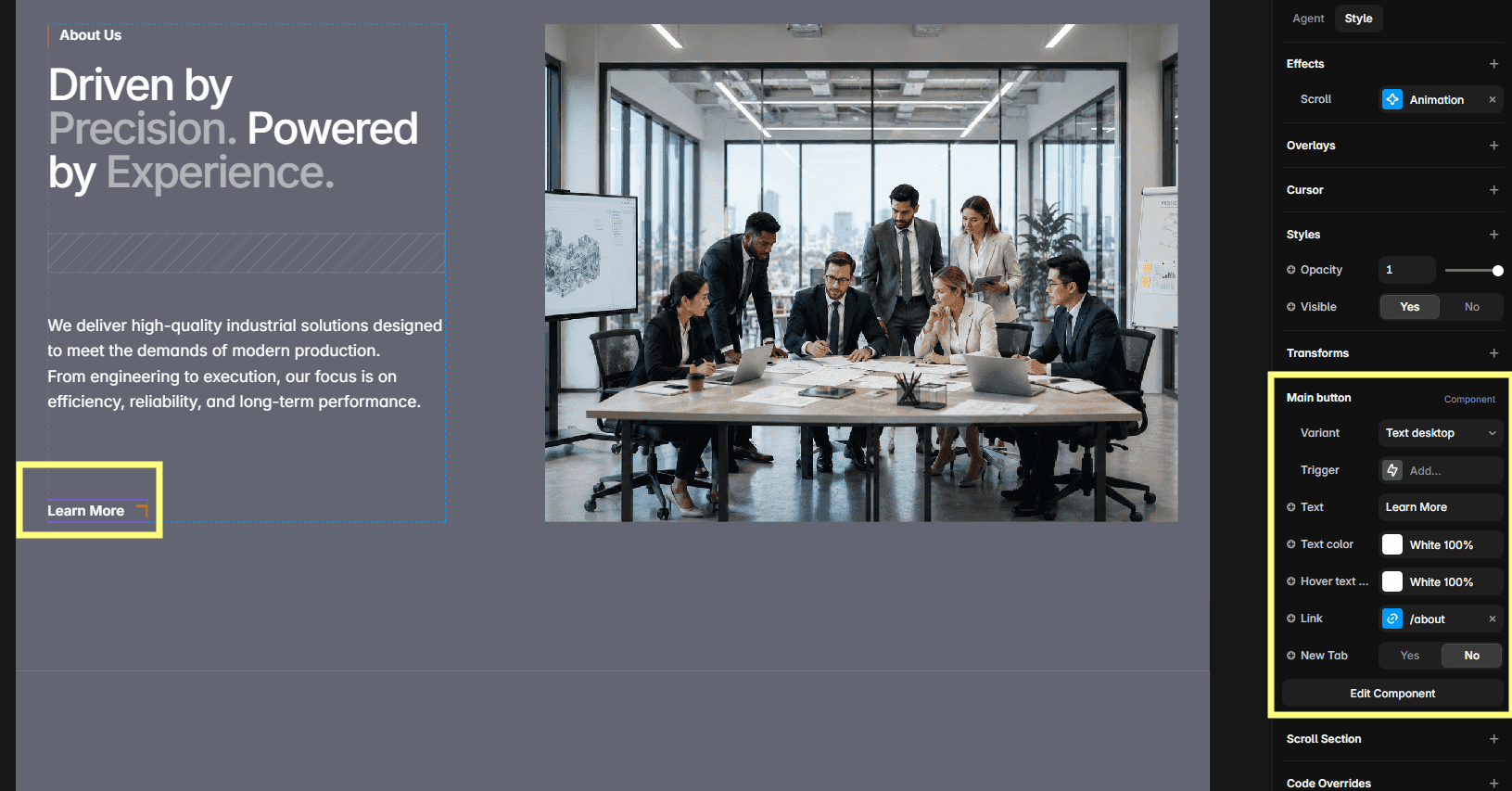
Select a button and update its label and destination link in the right-side component controls. Repeat this for every primary and secondary call to action.
Manage service cards through the CMS
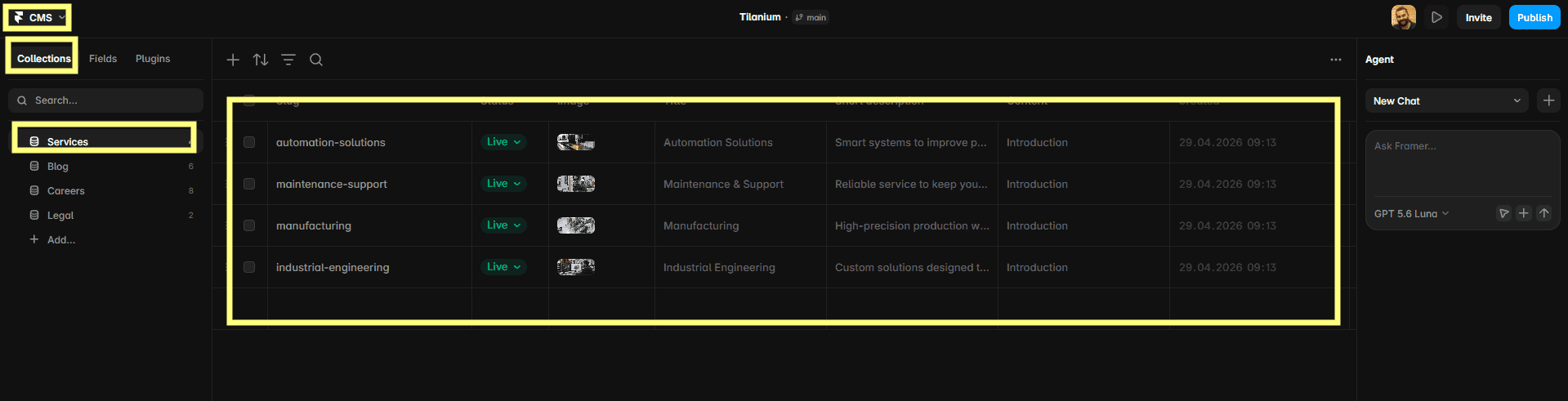
Open the CMS panel and choose the Services collection. Update each service title, summary, image, and supporting information there; service cards across the website will update automatically.
Edit service detail pages
Do not type directly on a dynamic service page. Select the relevant item in the Services collection and change the fields used by that page.
Update benefit cards
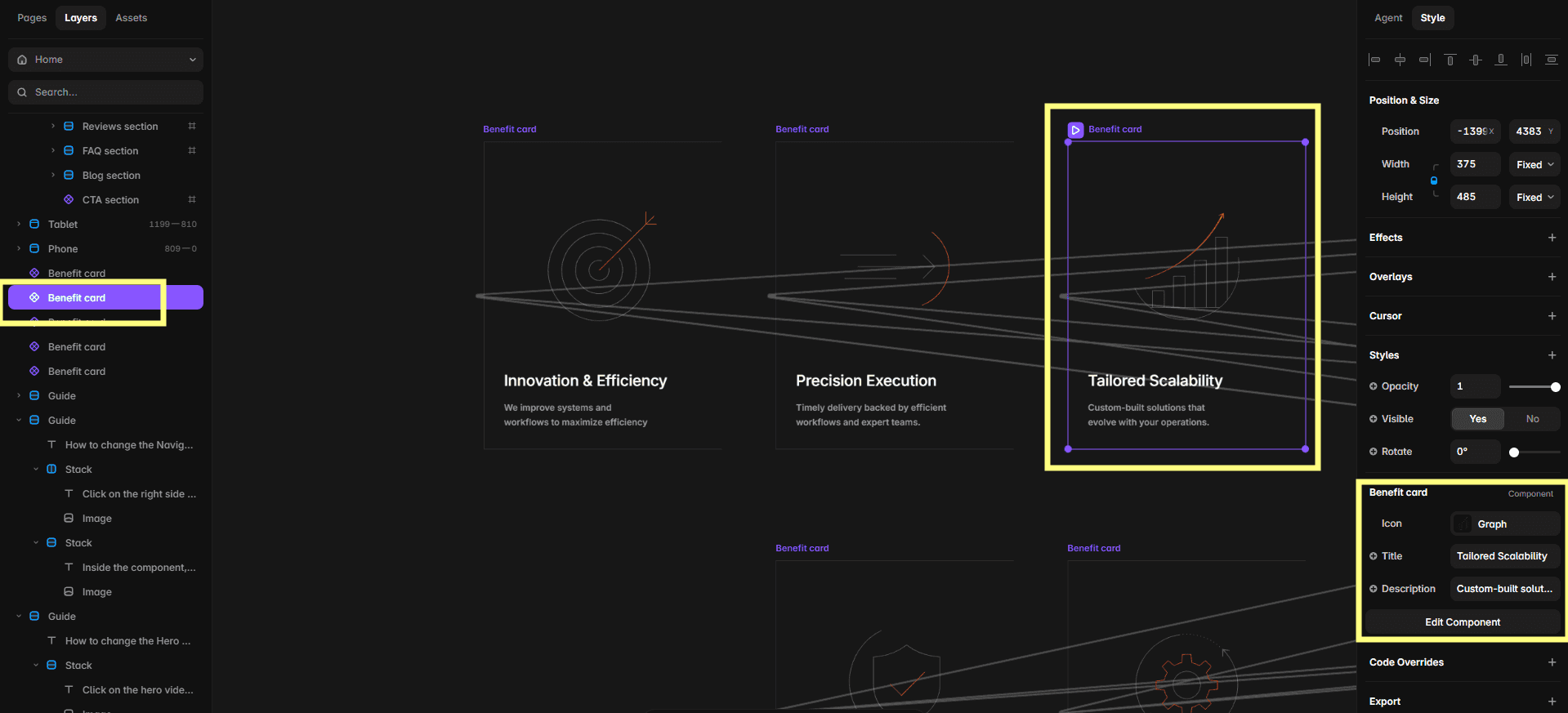
Select a benefit card and replace its title, description, icon, and other available content in the right-side component controls.
Update the How we work section
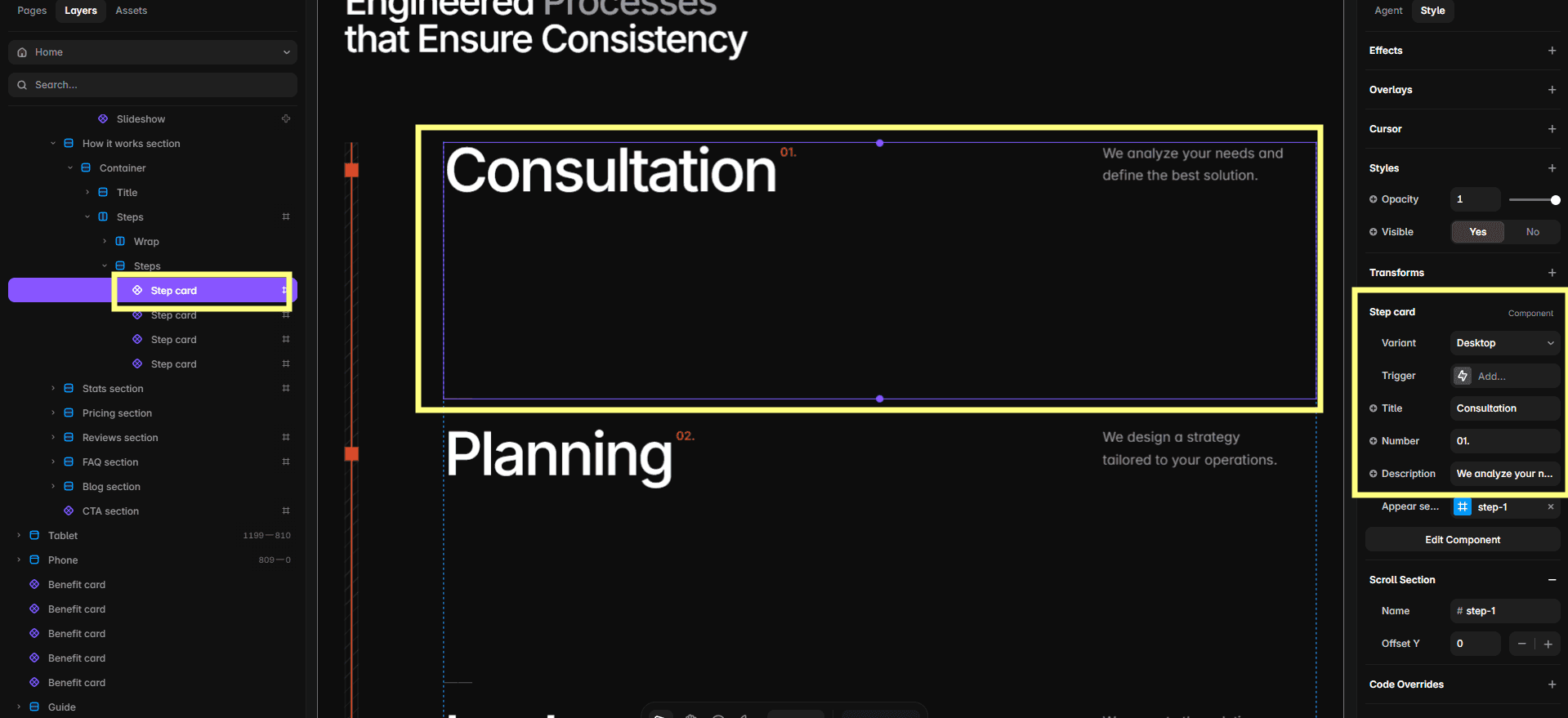
Select a process card and replace its step label, title, description, and supporting content in the right-side panel.
Edit statistics
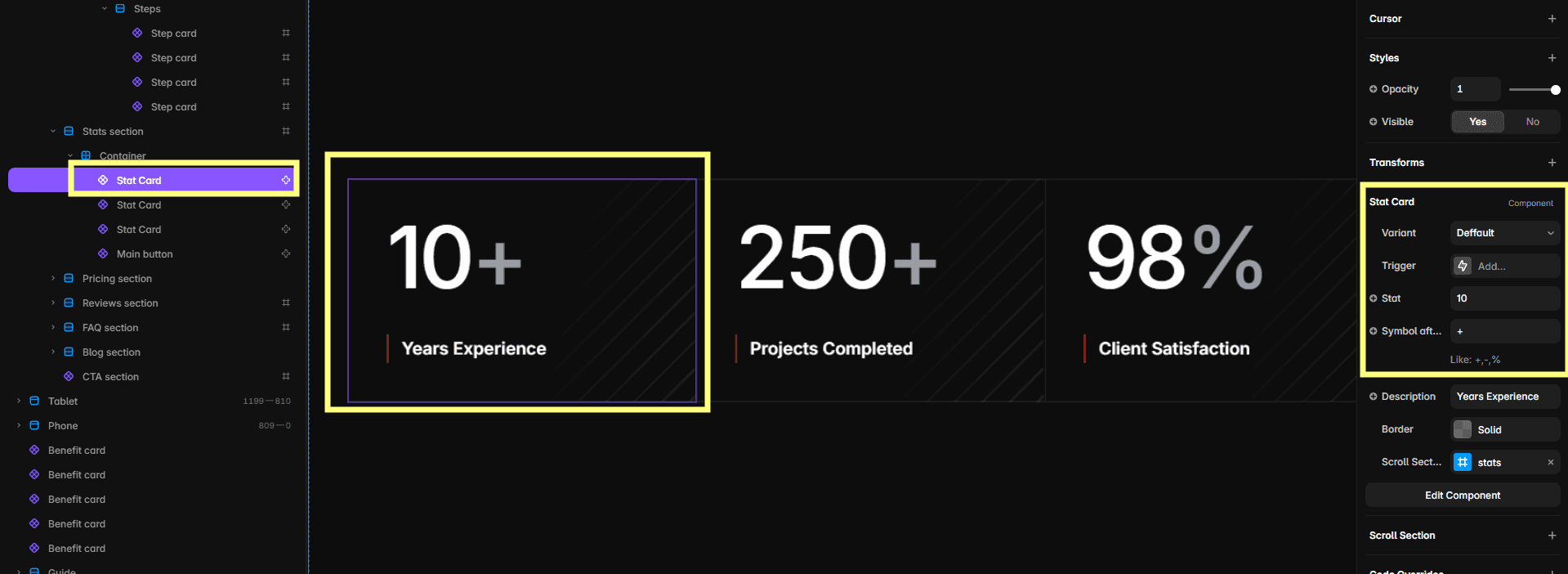
Select each statistics card and replace its number and label. Keep the values concise so they remain readable across breakpoints.
Customize pricing
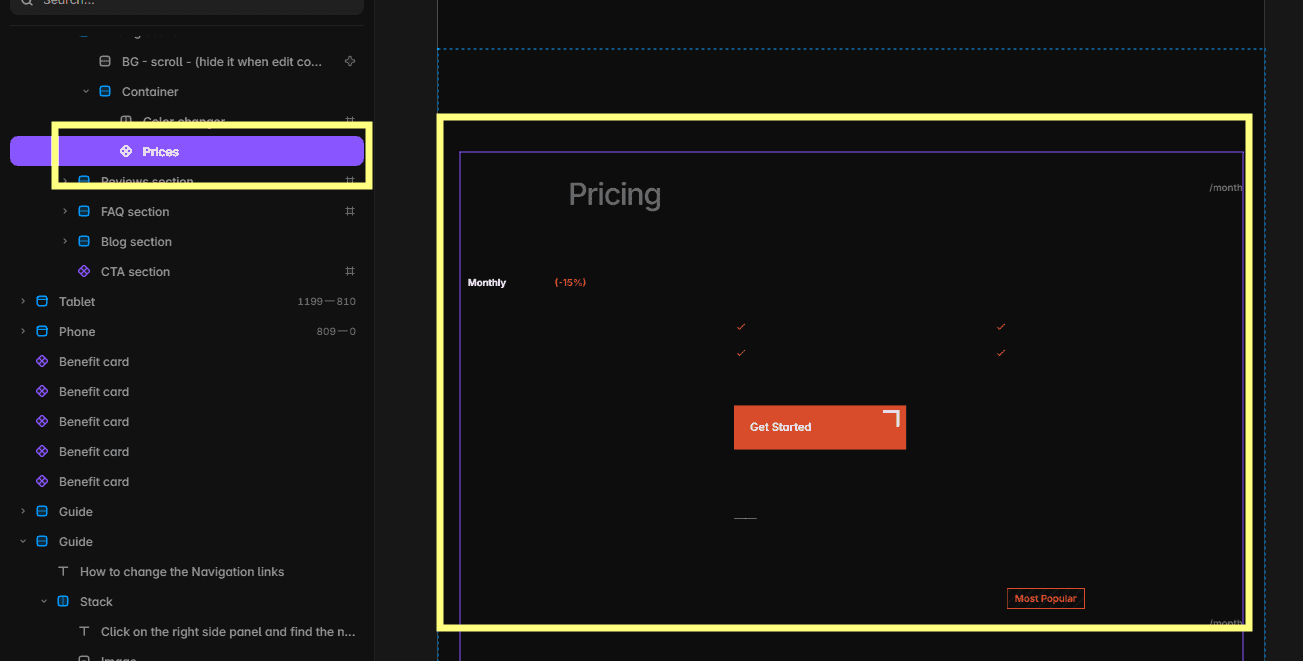
Double-click the Pricing component, or open it from Assets. Follow the instructions inside the component to update plan names, prices, included features, highlighted options, and button settings.
Update reviews
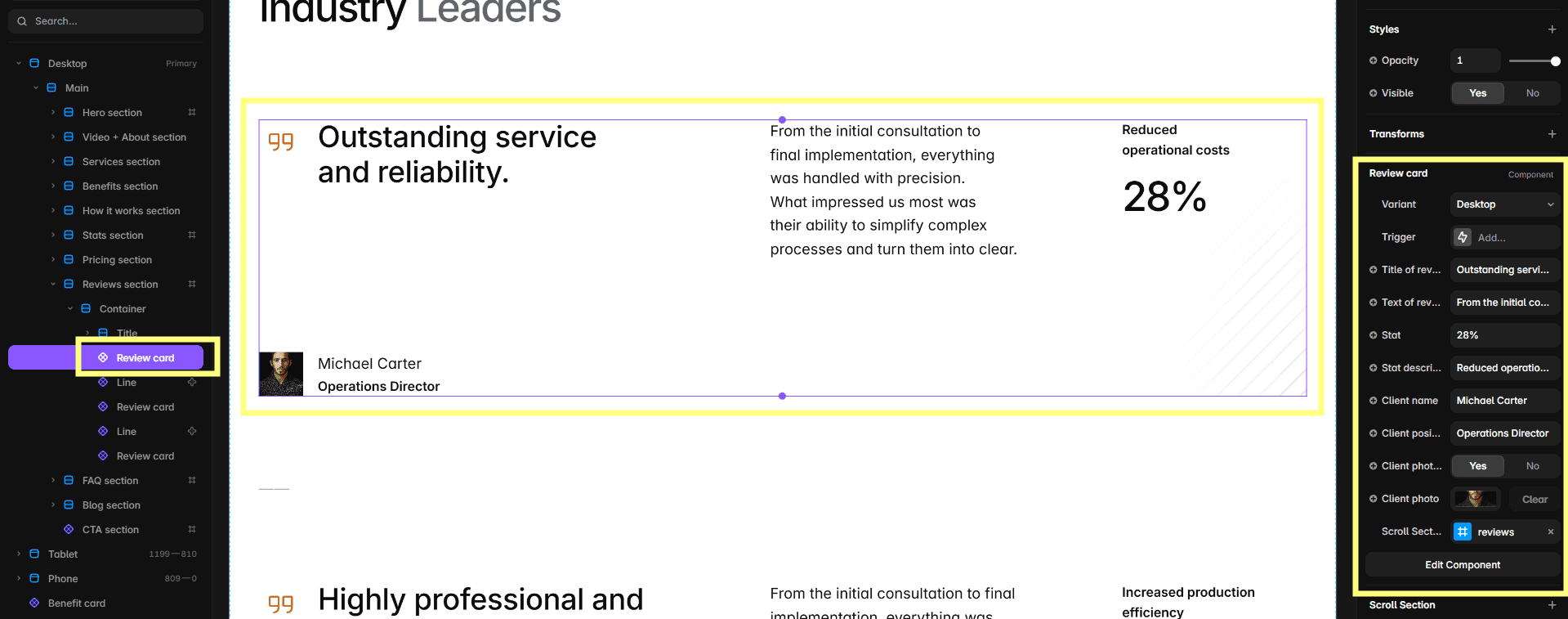
Select a review card and replace the quotation, customer name, company, role, and supporting image in the right-side properties panel.
Update frequently asked questions
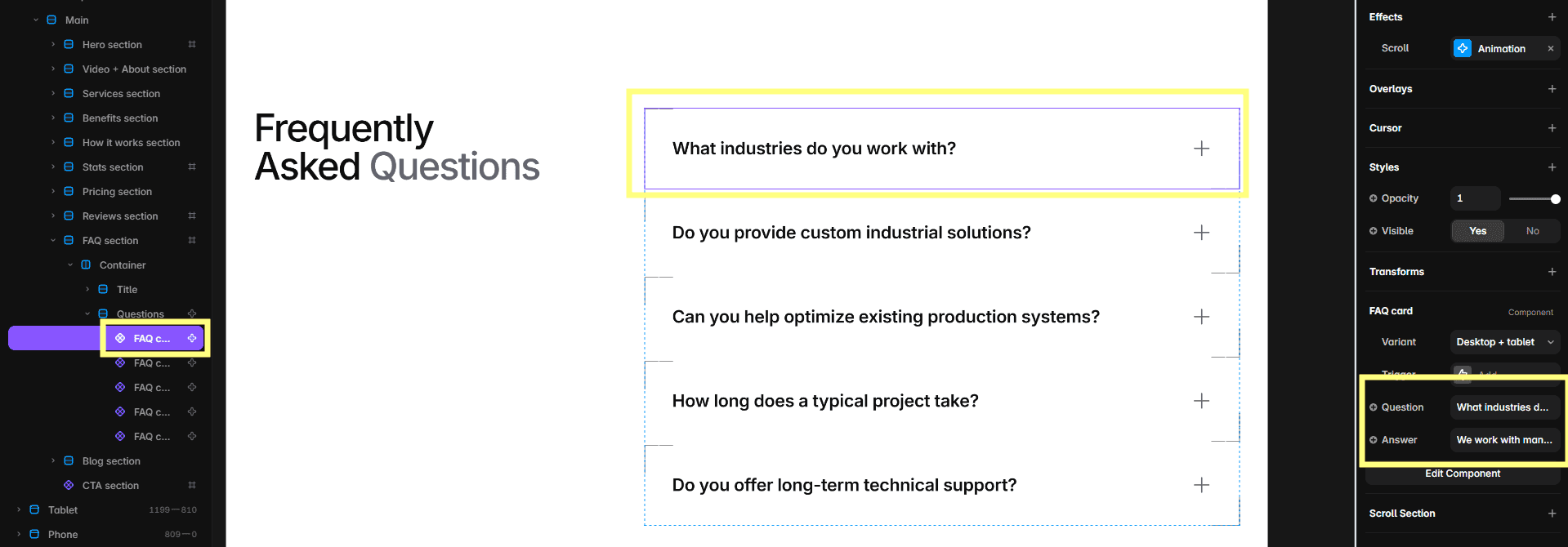
Select an FAQ card and replace its question and answer through the component controls. Keep answers focused on real customer objections.
Manage the blog listing
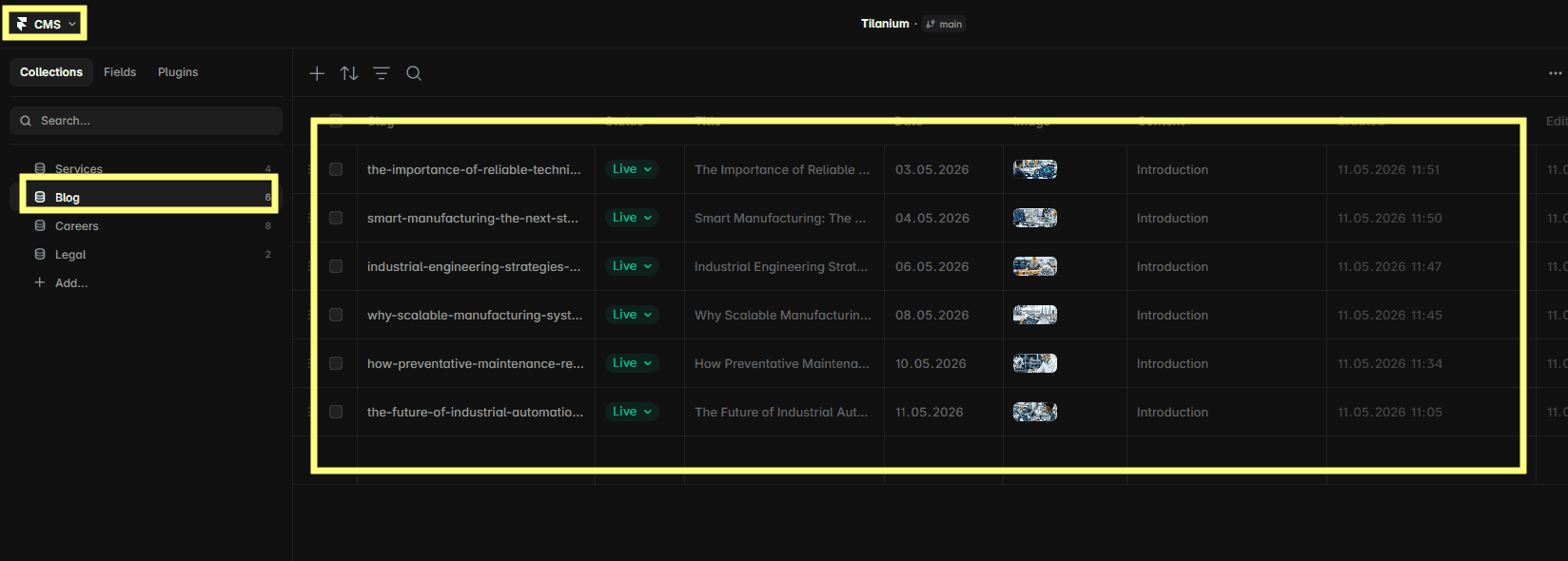
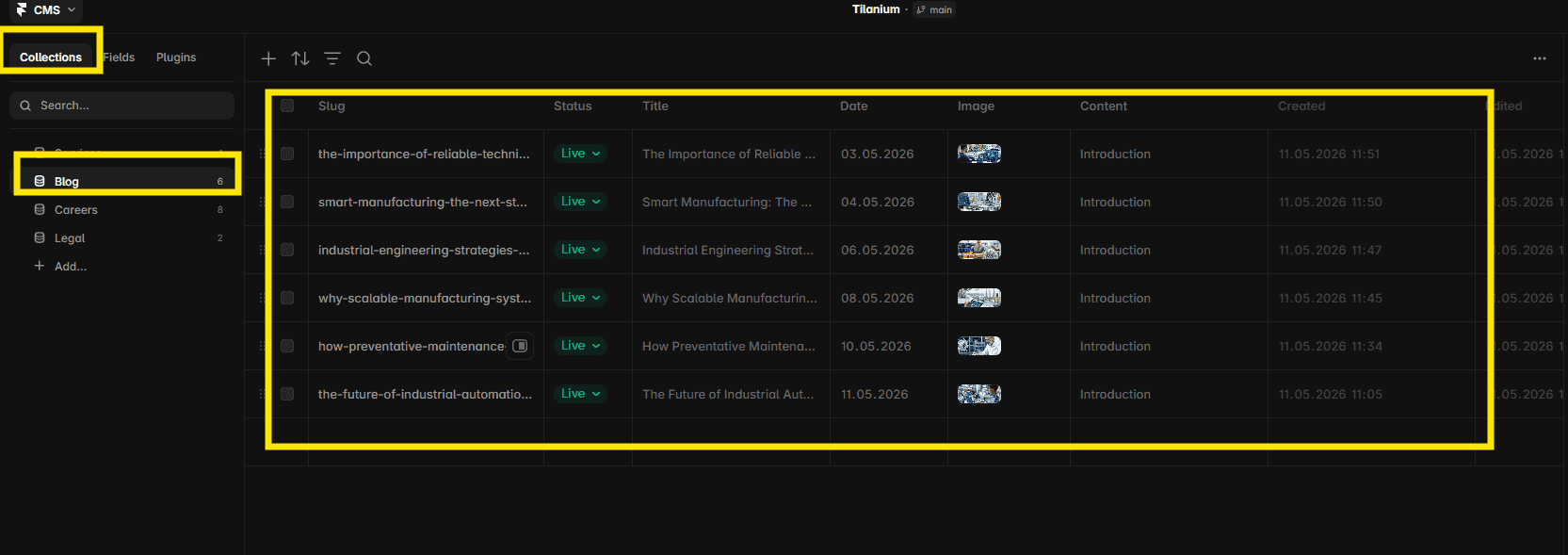
Open the CMS panel and choose the Blog collection. Update article titles, summaries, categories, cover images, and publication information there; the listing cards will update automatically.
Edit blog detail pages
Select the relevant Blog CMS item and update its formatted article content. The corresponding dynamic article page will use those fields automatically.
Change the CTA section
Double-click the CTA component, or locate it in Assets, to open its editable variants.
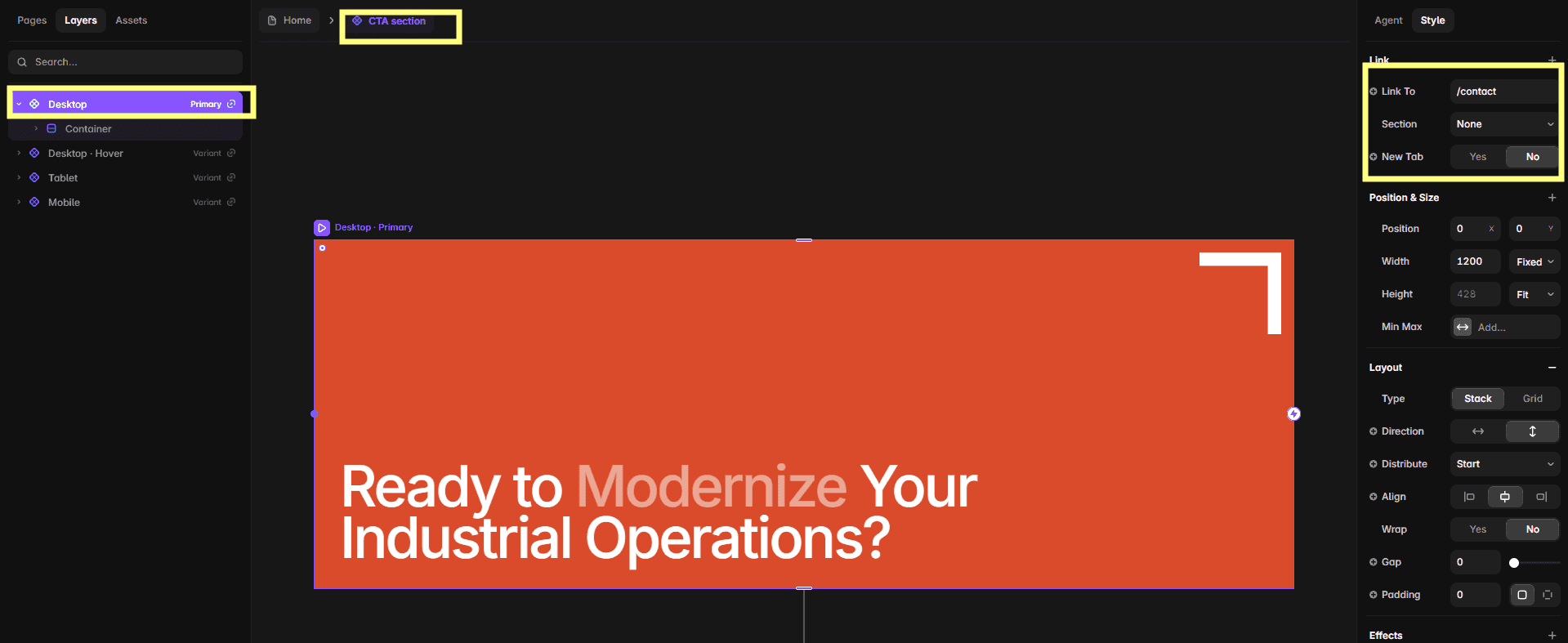
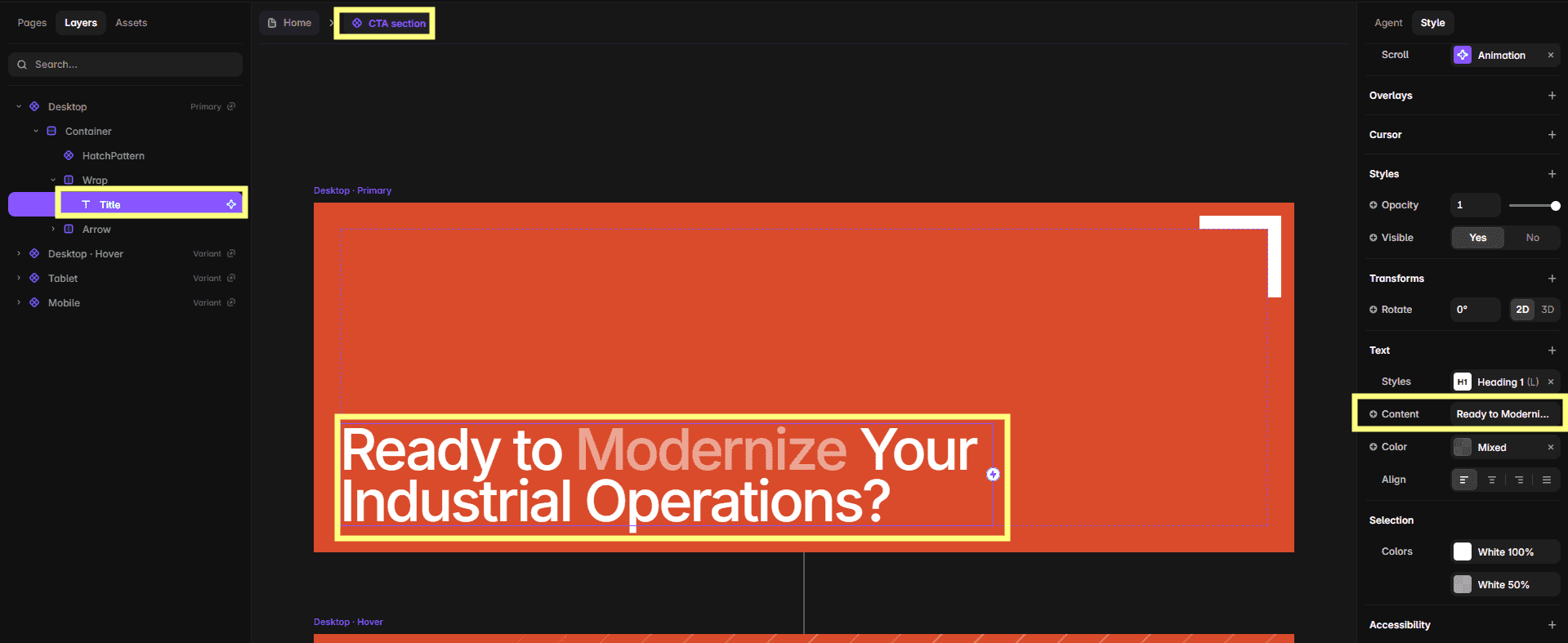
Select the primary variant to change its destination link. Select the text layer separately to replace the headline and supporting copy.
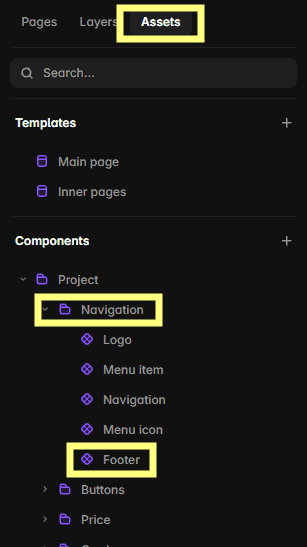
Edit the footer
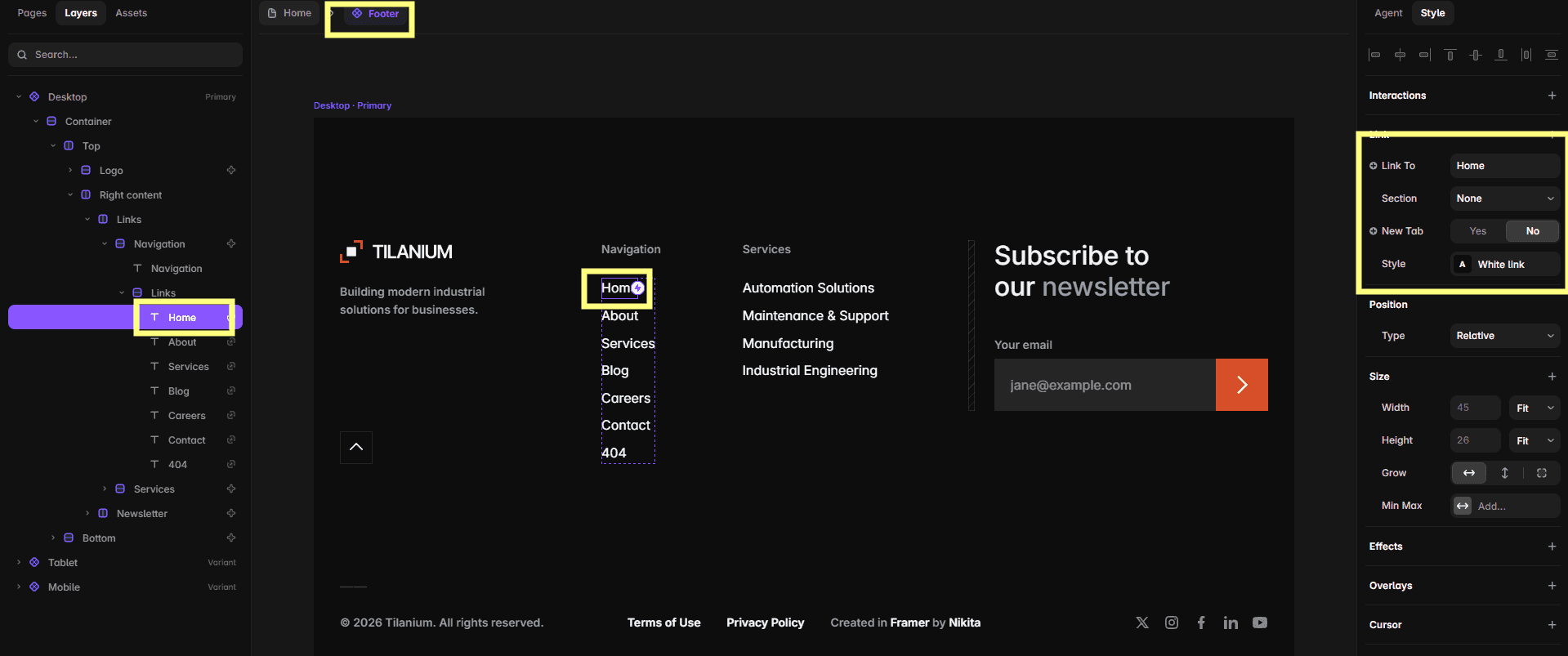
Because the footer is placed inside a Page Template, locate and open the Footer component from the Assets panel.
Inside the component, replace navigation labels, destinations, company information, contact details, newsletter copy, and legal links.
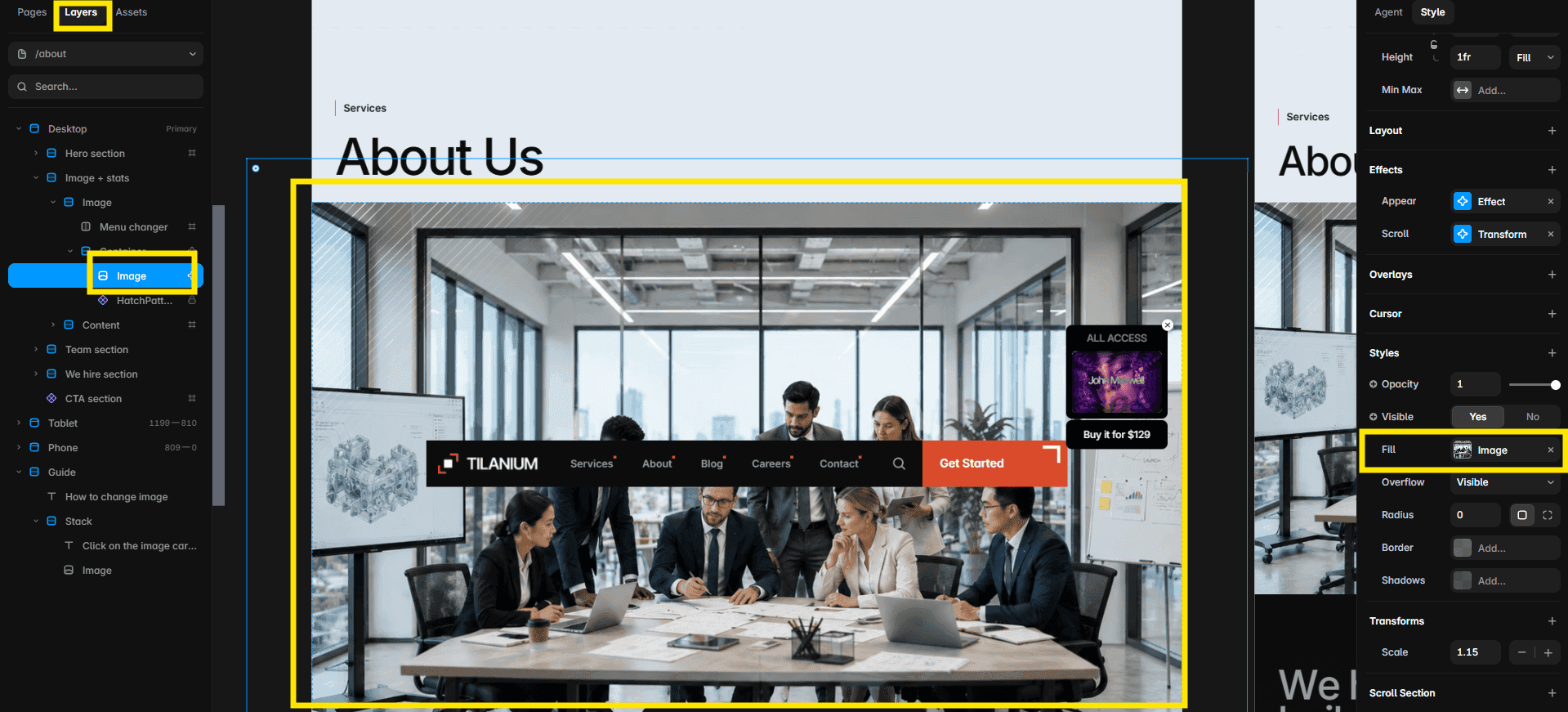
Customize the About page images
Select the main image card and choose a replacement image in the right-side panel. Review its crop on every breakpoint.
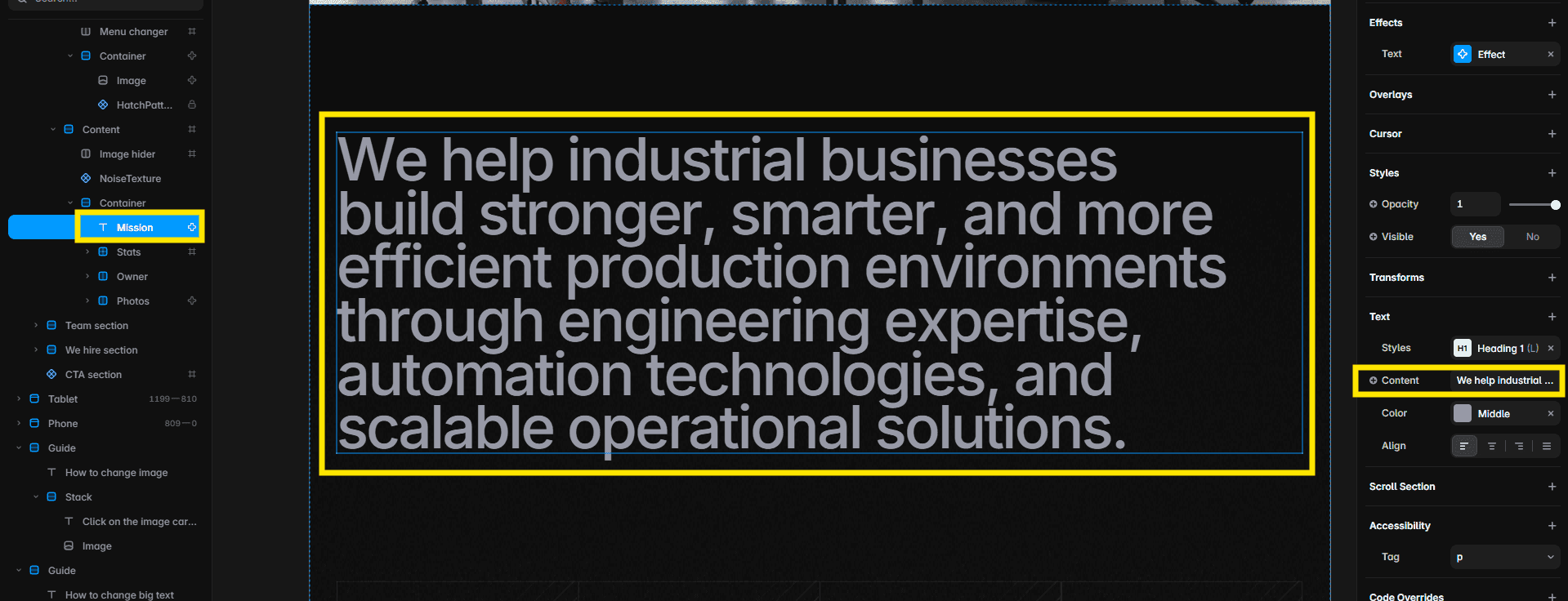
Change the large statement text
Select the large text card on the About page and replace its copy in the right-side component controls.
Replace the CEO image
Select the CEO image card and choose a new portrait in the right-side panel. Preserve a similar crop and aspect ratio for a balanced layout.

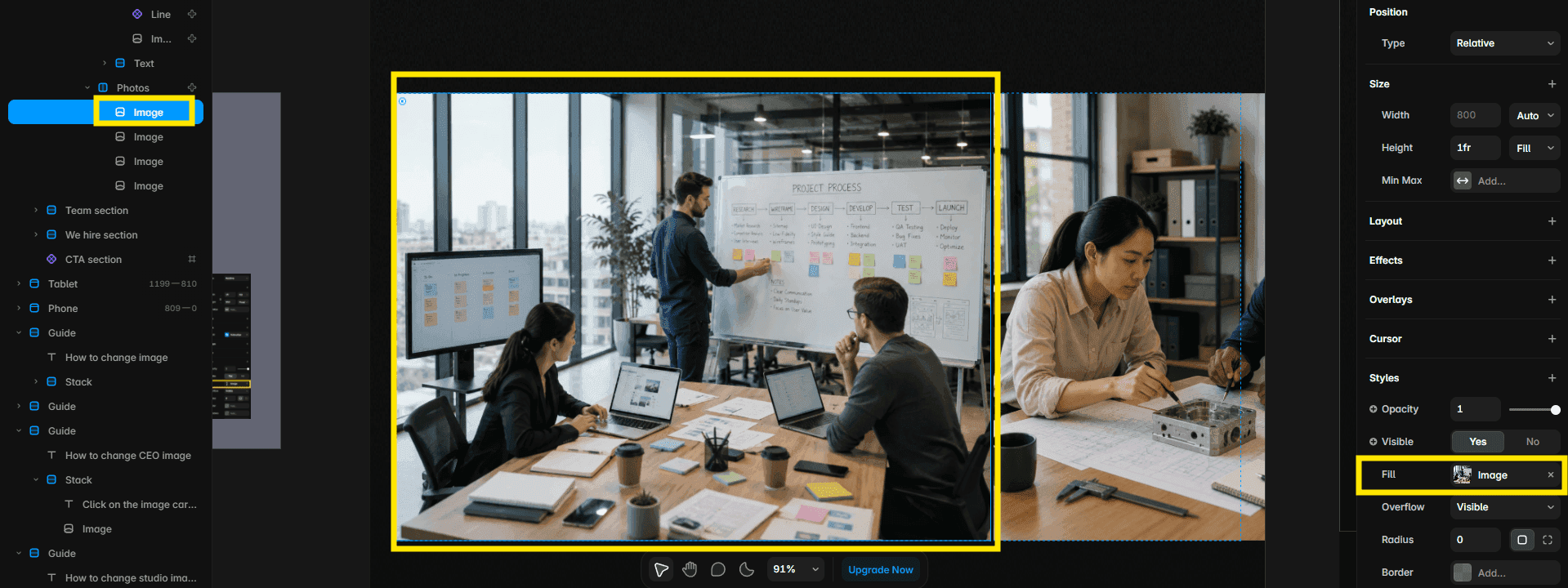
Replace studio images
Select each studio image card and replace its source in the right-side properties panel.
Update team member information
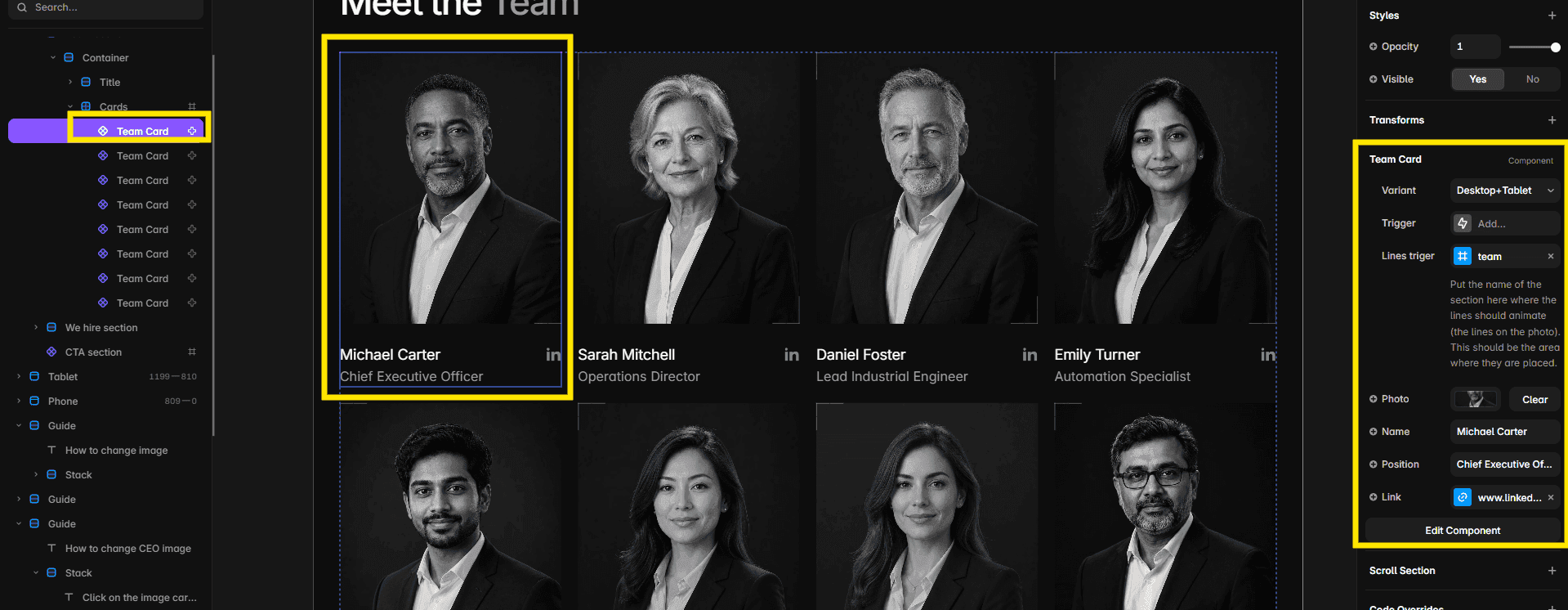
Select each team member card and replace the portrait, name, role, and other available information.
Manage career cards through the CMS
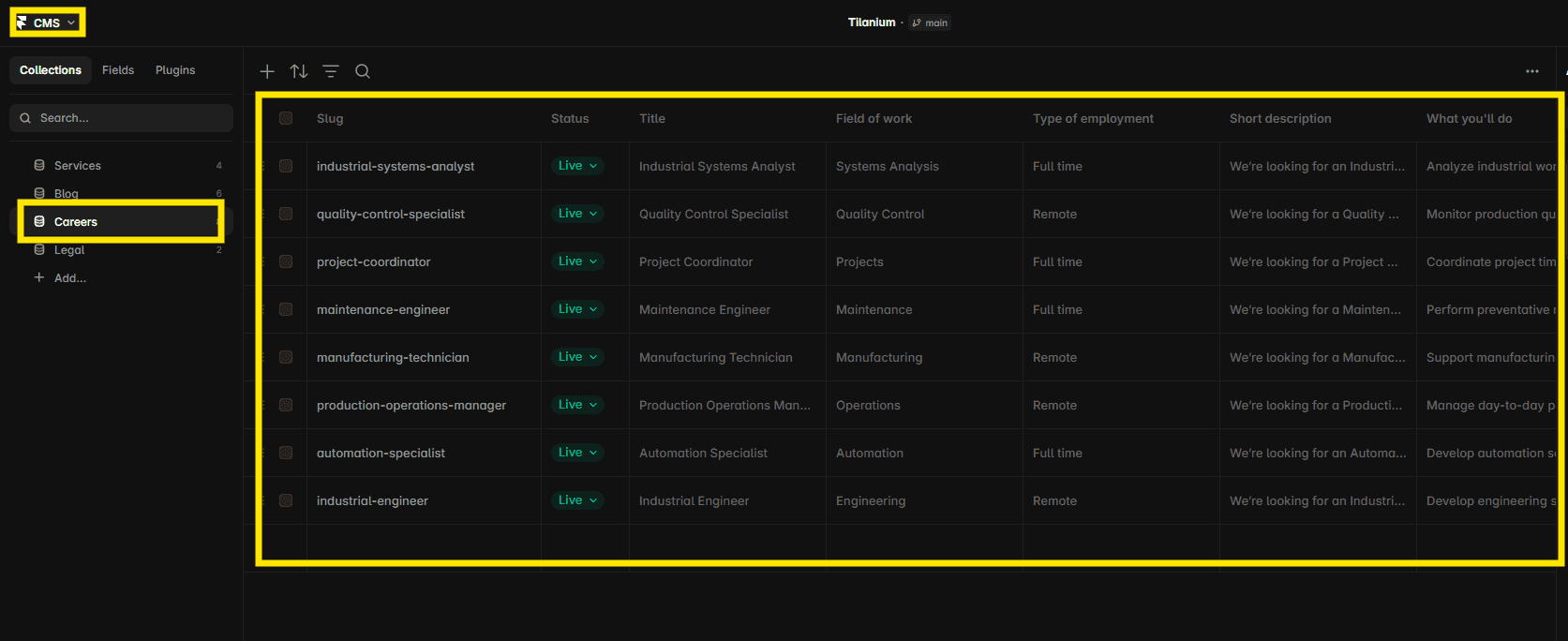
Open the Careers collection and edit vacancy titles, summaries, locations, employment details, and other fields there. Career cards will update automatically.
Edit career detail pages
Change the relevant Careers CMS item rather than typing directly on the dynamic vacancy page. The page will update from the collection fields.
Update legal pages
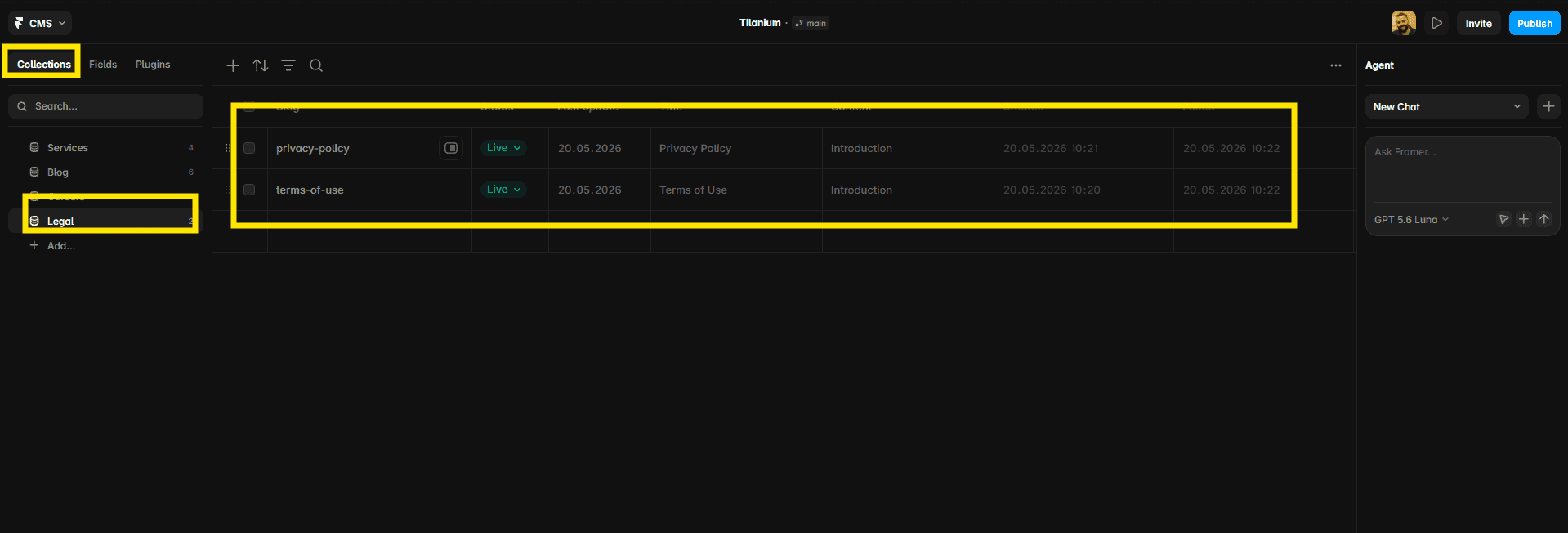
Open the Legal collection and replace the formatted content for Privacy Policy or Terms of Use. Use legal text appropriate for your business and jurisdiction.
Check responsive layouts
After replacing content, inspect desktop, tablet, and phone breakpoints. Pay particular attention to long navigation labels, technical service descriptions, pricing cards, statistics, team information, vacancy details, and images.
Final checklist
Replace all placeholder text, images, video, logos, prices, and contact details
Review Services, Blog, Careers, and Legal CMS entries
Test navigation, CTA, form, email, and external links
Check desktop, tablet, and phone layouts
Update page titles, descriptions, social images, and domain settings
Start with Tilanium
Tilanium gives manufacturers, industrial engineering firms, automation providers, and technical service companies a complete Framer website with CMS-powered services, articles, vacancies, and legal content. Explore the Tilanium template and preview it in Framer.


